
Have you ever opened WordPress or Google Search Console, spotted www in a website address that isn't supposed to have it, and immediately wondered what on earth happened? That's exactly the sort of thing that can send you down a rabbit hole. You check your site, everything looks normal, and then another screen shows a different URL. Suddenly you're wondering whether Google is indexing the wrong version, whether visitors are being redirected somewhere they shouldn't be, and whether changing one little setting might make the whole mess worse.
I ran into this while working on Exotic Gardening. I had already chosen the non-www version of the website, so seeing www show up again made me stop and investigate. Was WordPress holding on to an old address? Was Google seeing two copies of the same content? Or was the dashboard simply showing a URL that redirected correctly behind the scenes? Those are three very different situations, and they do not all need the same fix.
Here's the good news: seeing www does not automatically mean your website is broken. You can find out what's happening by checking where both addresses lead, which URL your pages tell Google to index, and whether your sitemap agrees. I'll walk you through those checks in the order I'd use them on my own site, explain what the results mean, and show you when to leave things alone versus when a redirect or setting really does need attention. That way, you're solving the actual problem instead of creating a new one.
What www actually changes
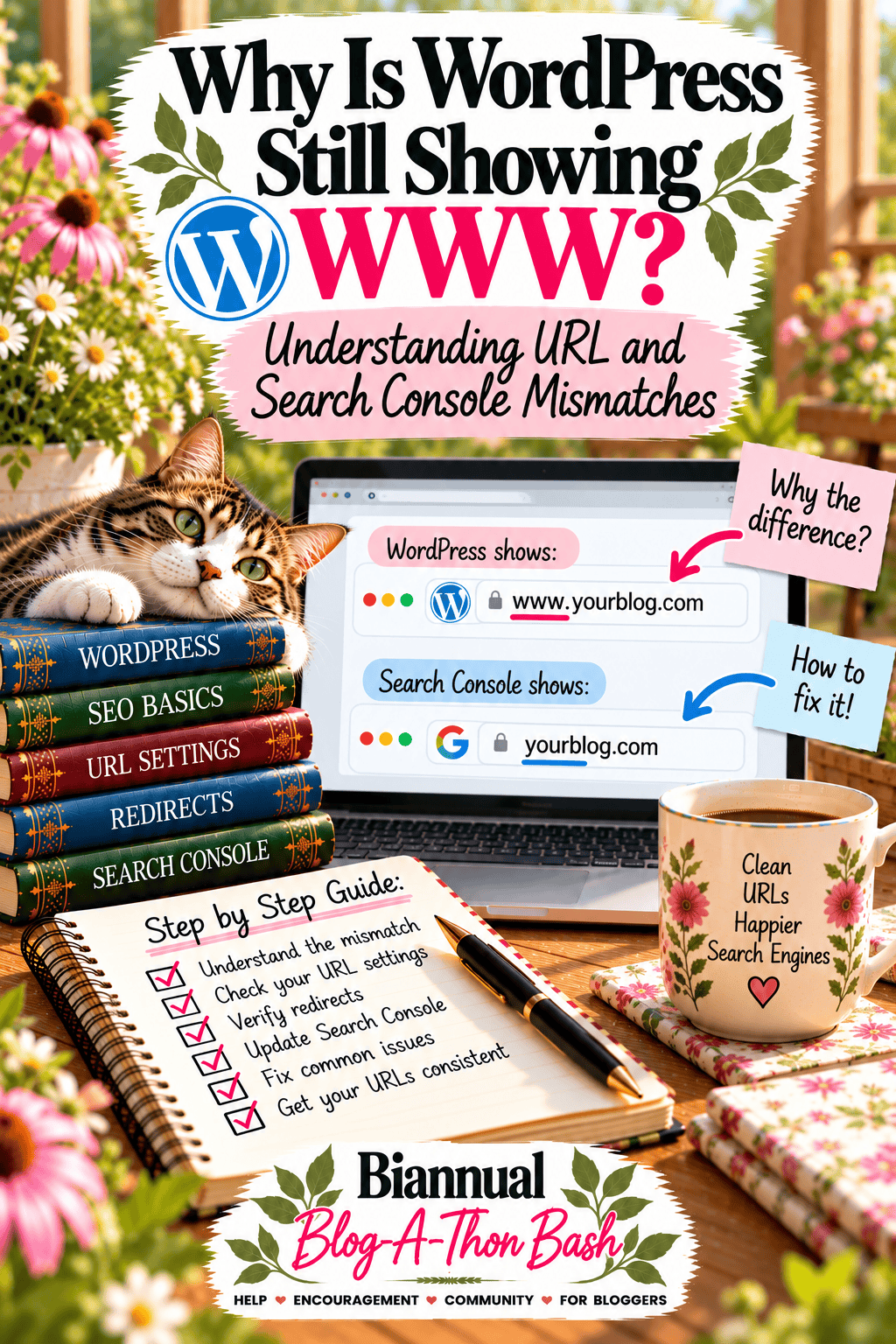
The addresses https://example.com and https://www.example.com are technically different hostnames. A website can use either one, but ideally visitors and search engines are consistently directed to the chosen public version. If both hostnames independently serve the same content without a clear canonical, search engines may have to work out which URL represents each page. If one version redirects cleanly to the other, there may be nothing wrong at all.
This comes up particularly often after a hosting migration, SSL setup, redesign, or change in domain settings. It also affects bloggers who have been running the same site for years and no longer remember why a particular URL was chosen. If you're still getting comfortable with how website addresses work, my guide to finding and understanding permalinks is a useful companion. The practical risk is not the letters www themselves. It is inconsistent redirects, canonical tags, sitemap URLs, or internal links. Incorrectly changing WordPress settings can also break the login screen or media paths.
First, What Do These Website Terms Mean?
Before we go clicking around, let me translate a few words you'll see in WordPress and Google Search Console. You don't have to become a web developer to understand this. You just need to know what each part is supposed to do.
- Website address or URL: The address someone types or clicks to reach your site, such as https://example.com.
- Hostname: The part that identifies the website. In this example, example.com and www.example.com are two hostnames that can lead to the same blog.
- Redirect: A forwarding instruction. Think of it like mail forwarding after you move. Someone uses the old address and is automatically taken to the preferred one.
- Canonical URL: The address a page recommends that Google treat as its main version. It's a signal, not a command that guarantees Google's choice.
- Sitemap: A list of important website URLs that helps search engines discover pages.
- Google Search Console: Google's free tool for checking how Google discovers, crawls and indexes your website. A warning in a report does not always mean your blog is broken.
The goal is simple: when a visitor or Google follows either version of an article's address, they should arrive at the same preferred article, and your site should consistently point to that address.
Try This Five-Minute Check Before Changing Anything
You can start with nothing more than your browser. No code, no server access and no special software required.
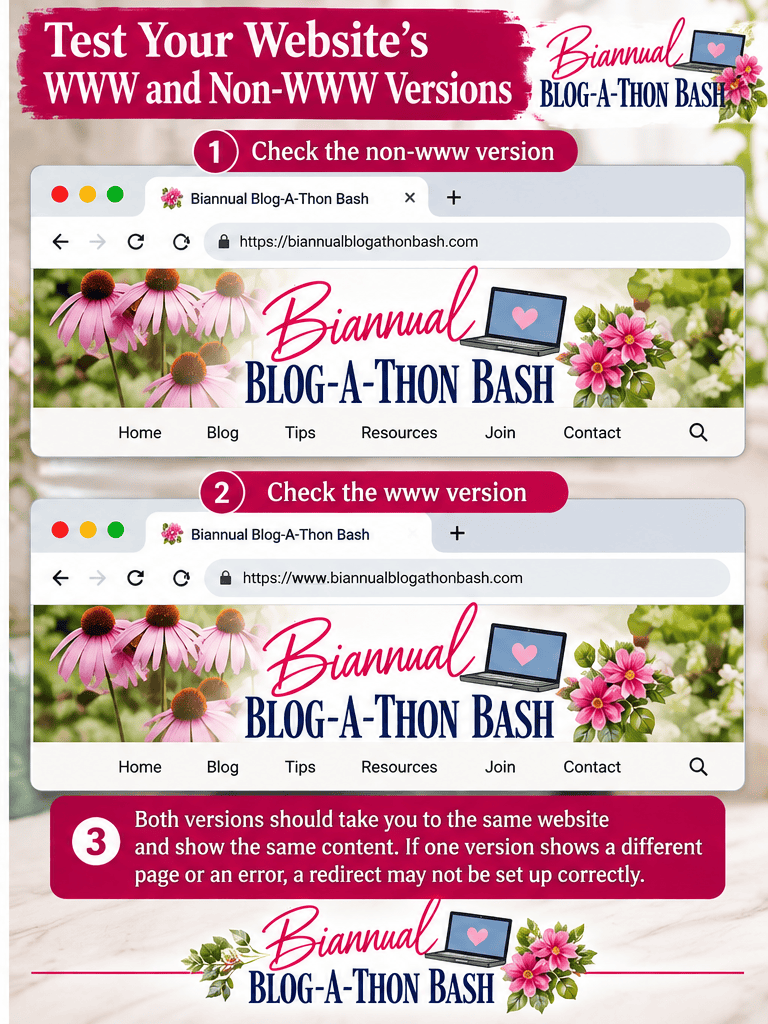
- Open a private browsing window. In Safari, choose File > New Private Window. Other browsers have a similar private or incognito option. This reduces interference from an existing browsing session, although it does not bypass every cache.
- Type your website address without www. Let the page load, then look at the address bar. Write down the final address you see.
- Type the same address with www. Again, let it load and note the final address. Did both end up at exactly the same hostname?
- Repeat the test with one blog post. Keep everything after the domain name the same. If you start with https://example.com/my-post/, try https://www.example.com/my-post/ too. Both should reach that same article on the preferred hostname.
- Check what happened. If both addresses land on the same working article, that is a reassuring first sign. If one fails, stays on a separate hostname or sends the article to your homepage, you have something specific to investigate.
Important: This browser check tells you where you ended up, but it cannot prove whether the redirect uses the correct HTTP status or whether Google sees the same canonical URL. We'll check those separately below. For now, don't change WordPress Address or Site Address just because the two addresses look different.
Three Examples of What You Might Find
Example 1: Everything lands on your preferred address. You type the www version, but the browser changes to the non-www version and shows the correct article. That may be exactly how your site is meant to work. Check the canonical and sitemap before deciding there is a problem.
Example 2: Both versions stay different. One address remains on www and the other remains on non-www, even though the article looks identical. This deserves attention because visitors and search engines can reach two addresses for the same content. Don't randomly change WordPress settings. Ask your host about forwarding the alternate hostname to the preferred one while keeping the rest of each URL intact.
Example 3: An old article goes to the homepage. You click a www link to a specific article, but you end up on the site's homepage. That's not a good article-to-article redirect. The old article address should take readers to the matching article on the preferred hostname, so they don't lose what they were trying to read.
Once you know which situation matches your blog, the rest of the troubleshooting process becomes much less intimidating.
Find out whether there is a problem before fixing anything
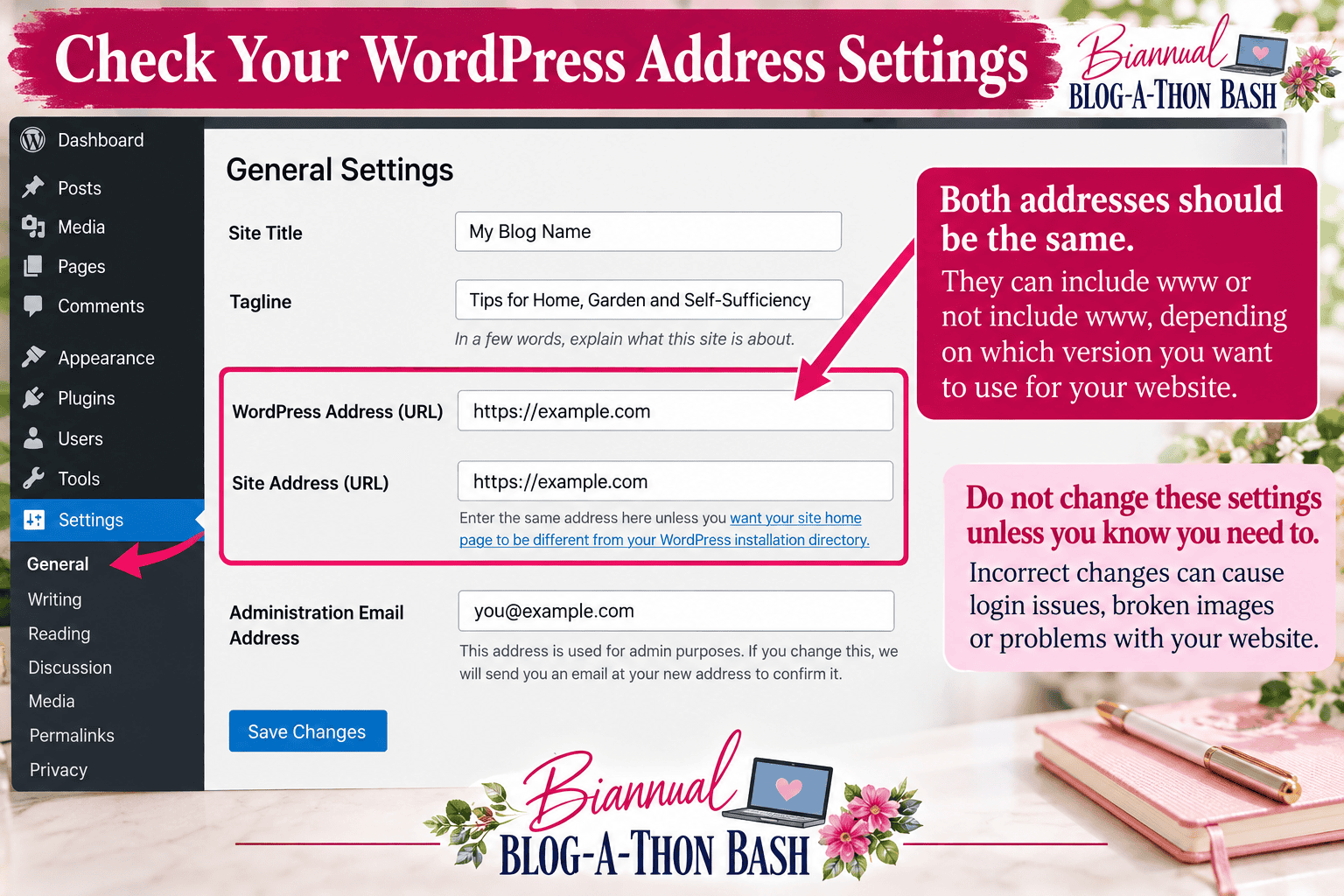
Start by visiting both versions of your homepage in a private browser window. Note which URL remains in the address bar. Repeat with an individual article rather than assuming that a homepage redirect proves everything works. Next, open WordPress Settings > General and record the WordPress Address and Site Address. They usually match, but a legitimate installation with WordPress in its own directory can use different values. Do not change them yet.
Open an article, choose View Page Source, and search for rel="canonical". The canonical URL is a recommendation to search engines about which version should represent that page. Then inspect your XML sitemap, usually linked from your SEO plugin or robots.txt, and see which hostname appears there. Compare the sitemap with your internal navigation and a few important article links. For more context on why those signals matter, see my SEO tips for bloggers. If everything consistently points to the same version, the appearance of www in one report may not be a technical fault.
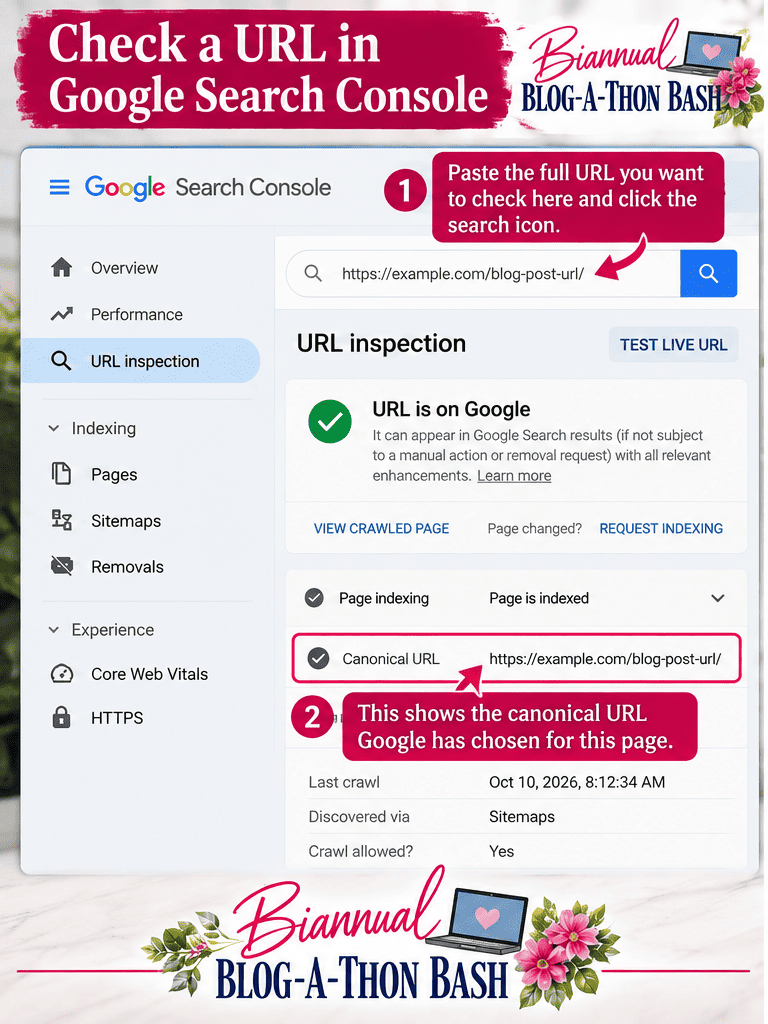
In Google Search Console, check the property type. A Domain property intentionally covers www, non-www, and applicable subdomains and protocols. A URL-prefix property covers a narrower address prefix. Seeing both versions represented in Search Console does not prove duplicate-content damage. Use URL Inspection on a representative article to compare your declared canonical with Google's selected canonical, remembering that Google may not have refreshed the report immediately.
How to check redirects yourself
In a desktop browser, open Developer Tools, select Network, and enable Preserve log. Visit the alternate hostname and inspect the initial document request. Ideally it redirects permanently, usually with HTTP 301 or 308, to the preferred host. Test a deep article URL as well. A redirect that works for the homepage but sends every article to the homepage is not an acceptable solution. If you use a terminal, curl -I https://www.example.com/example-article/ can show response headers, although some servers handle HEAD requests differently from GET requests.
Choose the right fix for the result you found
If both hostnames already resolve to the same preferred URL, the canonical tag agrees, and the sitemap is consistent, you may not need a fix. If the alternate hostname serves a separate copy of every page, choose the established public host and configure a permanent redirect at the hosting, server, or CDN layer. Preserve each article's path and relevant query string. Make sure the SSL certificate covers both hostnames before changing redirects.
If WordPress-generated links use the wrong host, investigate the authoritative WordPress address settings. When those fields are locked, they may be controlled by WP_HOME and WP_SITEURL in wp-config.php or by the hosting environment. Do not delete those definitions blindly.
Take a tested backup before any change that affects site addresses. Work with your host if your setup uses multisite, a reverse proxy, or WordPress in a subdirectory. Avoid a blanket database search-and-replace. Serialized settings and integrations make indiscriminate replacements risky, and a hostname issue may not require database changes at all.
What changes after the repair, and when?
You can test a corrected redirect as soon as it is deployed and caches have cleared. The expected technical result is straightforward: both versions of a given page lead to one public URL, the sitemap and canonical agree, and readers can still log in and load images.
Search Console may take days or weeks to reflect recrawling. Fixing an inconsistency can remove unnecessary technical ambiguity, but it does not guarantee higher rankings or more traffic. Track affected URLs and organic search performance rather than promising an overnight transformation.
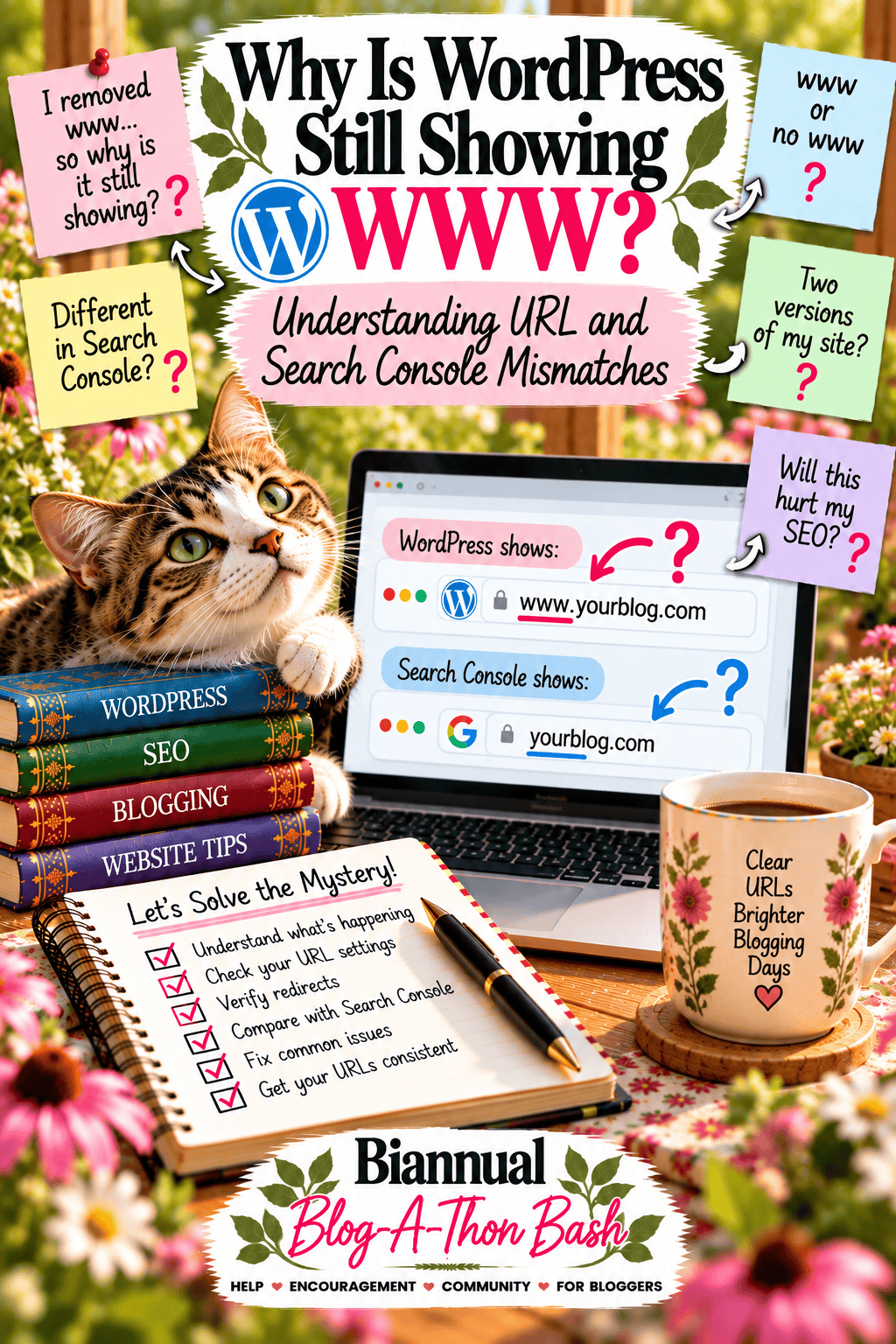
What I Learned from the Exotic Gardening URL Mismatch
The first thing I learned was not to treat the appearance of www in an administrative screen as proof of an indexing problem. For Exotic Gardening, I chose the non-www public hostname and checked that redirects and canonical signals pointed to that version.
The lesson for other bloggers is to compare what the browser does, what WordPress is configured to use, and what Google actually reports before making a change. A Search Console report may continue listing an old URL after a correction because Google needs time to recrawl it.
My troubleshooting checklist
- Open both hostname versions of the homepage and one individual article. Record the final URL in each case.
- Check WordPress Address and Site Address under Settings > General. Do not change them without a backup and a clear plan for login access.
- Inspect the page source for the rel="canonical" URL and compare it with the final redirected URL.
- Open the XML sitemap and verify that its listed URLs use the preferred hostname.
- Use Search Console's URL Inspection for the exact preferred URL. Compare the user-declared canonical and Google's selected canonical when that information is available.
- After any server or CDN redirect changes, clear the relevant caches and test again before requesting indexing.
If everything already points to the preferred hostname, leave the working settings alone. A lingering alternate URL in a Search Console report is not, by itself, a reason to change the site's address.
The important distinction is that noticing www in a dashboard or Search Console report is only the beginning of the investigation. I don't treat that observation as proof of a redirect or indexing problem. The browser destination, WordPress address settings, sitemap, and canonical URL have to tell the same story before I decide whether anything actually needs fixing.
When to Ask for Help with a WordPress URL Problem
If the redirect chain is confusing, your login stops working, or the server and WordPress settings disagree, it is worth getting help before making more changes. Ask your hosting provider or WordPress support professional to check both hostnames, the HTTPS certificate, redirects, canonical tags and sitemap URLs. Request an explanation of the problem and a reversible plan before authorizing any changes. A hosting-level redirect may not be something you can safely fix inside the WordPress dashboard.
For bloggers who want support working through technical problems like this, I also share practical blogging guidance through the Building Better Blogs membership. But you can use the checks in this article whether you belong to a group or prefer to troubleshoot on your own.
In the monthly BBB blogging group, we can work through this type of issue together. Bring your site URL and redacted screenshots of what you see. The point is to understand your setup and make the smallest safe correction, not to change settings simply because they look unfamiliar.
Frequently Asked Questions About WWW and Non-WWW URLs
Does Google consider www and non-www two different websites?
They are different hostnames, and both can technically serve pages. Google generally tries to select one canonical URL for duplicate content, but it is better to make your preference clear with consistent redirects, canonical tags, sitemaps and internal links.
Will changing my WordPress URL fix Search Console immediately?
No. Changing the address can affect how WordPress generates links and how you access the dashboard, but it does not instantly change Google's reports. Fix the actual technical issue first, then allow time for recrawling. Do not change WordPress Address or Site Address just to make a report look different.
Is a 'Page with redirect' message a problem?
Not necessarily. If the nonpreferred hostname correctly redirects to the preferred page, Google normally will not index the redirecting URL separately. Inspect the destination page instead and confirm it is eligible for indexing.
Should I choose www or non-www for my blog?
Either can work. For an established blog, consistency is more important than changing to whichever looks better. Keep the hostname your site already uses successfully unless there is a specific technical reason to change it, and redirect the alternate version to the preferred one.
What should I check before requesting indexing?
Confirm that the preferred page loads over HTTPS, returns a successful response, has the intended canonical URL, is not blocked by a noindex directive, appears consistently in your internal links and sitemap, and is not being redirected somewhere else. Then use URL Inspection for that exact page.
The Bottom Line: Fix the Problem, Not the Appearance of WWW
When I see a confusing URL in WordPress or Search Console now, I don't start changing settings. I follow the address, check what the page tells search engines, and compare the results. Sometimes there is a redirect to repair. Sometimes the canonical and sitemap need attention. And sometimes nothing is wrong at all except an old report that hasn't caught up. Knowing the difference saves time, protects a working website and gives you a much better chance of fixing the problem the first time.







Leave a Reply